

To do this, you could, for example, use the relevant function from DataQualityTools. As this function does not distinguish between duplicate contacts and surplus contacts, you should first carry out a duplicate check to remove all contacts that appear twice or more from the table. To do this, you can use the "Matching Using the Postal Address" function from DataQualityTools, amongst others. You can then remove the surplus contacts from the table.
To do so, follow the steps below:
- If you have not already done so, download DataQualityTools free of charge here. Install the program and request a trial activation. Then you can work with the program for one whole week without any restrictions.
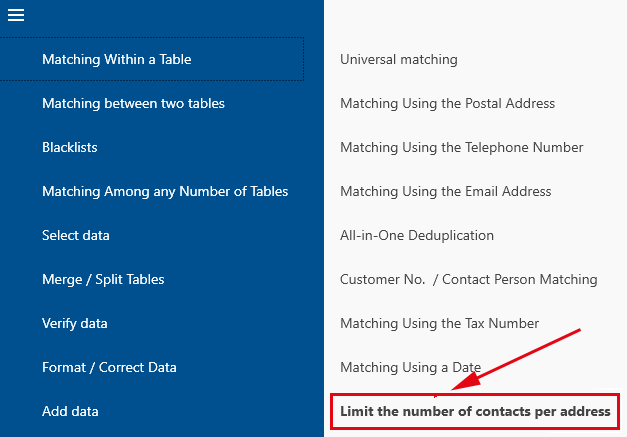
- The functions we need can be found in the menu of the 'Matching within a table' block. Let’s choose 'Limit the number of contacts per address'.
- After starting this function, the project management appears. Here, you create a new project with a project name of your choice and then click on the 'Next' button.
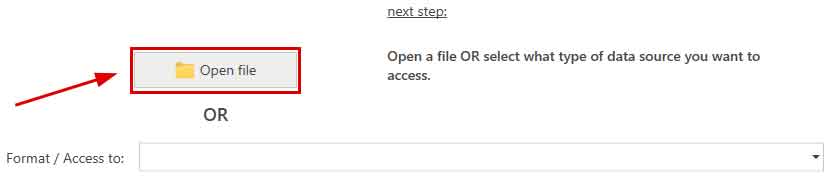
- In the next step, we start by opening the Excel file with the data to be processed by clicking on the 'Open file' button.
Finally, the table can be selected in the corresponding selection lists. - Afterwards, the program has to be told in which columns it can find what information in the table, i.e., which column contains the street or name of the city. To do so, you have to select each data field from the table from the selection list with the column headings that fits best with the designation on the left.
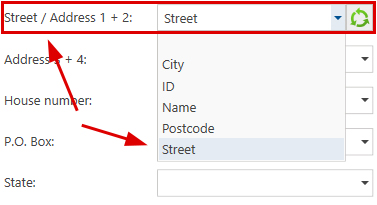
The program automatically carries out a default field assignment using the column headings. Since we want to search for duplicates based on the postal address, we also have to indicate the respective columns from the table to be processed that contain the information for all of the components of the postal address. The results of the field assignment can be verified by using 'Verify field assignment’, which can be found on the right half of the screen. - With the 'Next' button, we come to the dialogue where the actual function can be configured. Here, you must specify the threshold for the maximum allowed discrepancy between two addresses.
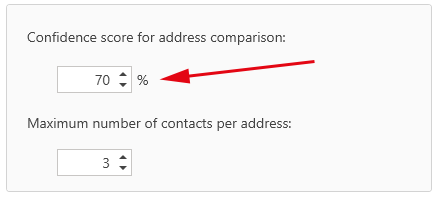
And, of course, the maximum number of contacts per address that should be retained: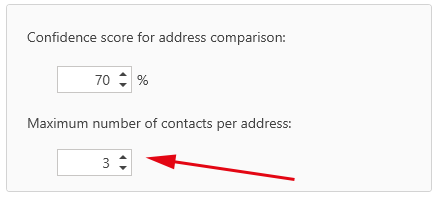
Using the deletion rule, the order of the records within a group in the results can be specified if required. In this way, you can control which records within a group are deleted, for example, the oldest records first. - A click on the 'Next' button starts the function. In no time at all, a summary of the results is displayed.
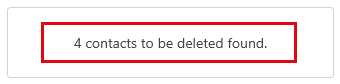
If the program has found duplicates in the processed table, a click on the 'OK' button takes you to the dialogue with the functions for transforming the results. Otherwise, reduce the threshold for the degree of matching and the re-start the comparison. - In the dialogue with the functions for transforming the results, there is a button at the very top with the caption 'Manual post-editing'. Here, the results of the comparison is presented in table form. Those records that should be deleted are marked with a red X, which can be removed if necessary.

- Finally, you must transform the results. For example, we could delete the records marked with a deletion flag directly of the Excel file. To do this, we select the appropriate function by first clicking on 'Deleting functions':

And then click on 'Deleting in the Source Table':
You can use DedupeWizard as well to carry out duplicates within one table. It can only process Excel files and comprises only the most important functions of DataQualityTools.
Note: There is a video tutorial available for DataQualityTools, introducing the user to the operation of the program based on the example of a duplicate detection within one table.
You can read about how to use DataQualityTools to search for duplicates between two tables in the article 'Find Duplicates between two Tables in Access'.