

Ideally, there is a criterion in both tables that can be used to link them uniquely, such as an ID or item number. In this case, the first step of linking the two tables can be completed quickly. If this is not the case, it is best to take a look at this article: "Enriching addresses"
Finally, there is the problem that the data sets to be used for data enrichment may be in different formats. The target table for enrichment could be a list stored in an Excel file, for example. And the source table could be a text file. Or it could be data from a database managed by a database server such as MySQL or SQL Server. Of course, before the actual enrichment, you could first ensure that both data sets are in the same format by exporting and/or converting them accordingly. However, it is much easier to skip this step and process the data directly in the format in which it is available.
DataQualityTools, among others, can do all this and much more. To enrich data with it, proceed as follows:
- If you have not already done so, download DataQualityTools free of charge here. Install the program and request a trial activation. Then you can work with the program for one whole week without any restrictions.
- The function we need can be found in the menu in the "Select data" block. Select the "Enrich data (2 Tables)" function for data enrichment.

- After starting this function, the project management appears. Here, you create a new project with a project name of your choice and then click on the 'Next' button.
- In the next step, we first open the two tables with the data to be processed using the "Open file" button:
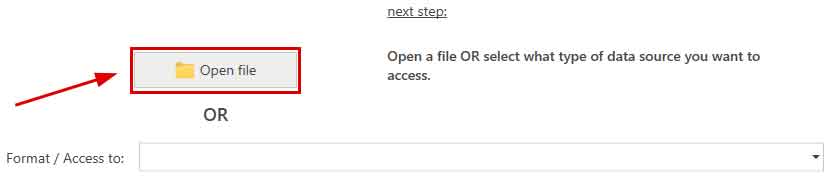
Excel, Access, dBase, CSV and text files are possible here.
For database servers (MS SQL Server, MySQL, MariaDB, Oracle, Azure SQL or PostgreSQL), first select the appropriate database server from the drop-down list under "Format / Access". Then enter the name of the database server. After clicking on the "Connect to server" button, enter the access data. Finally, select the desired database and table from the corresponding selection lists. - Then specify the criterion to be used to link the two tables. For example, we could link the two tables using the "ID" data field from the first table and "ID_B" from the second table:

In this case, the result includes all data record pairs where the content of the "ID" column from the first table matches the content of the "ID_B" column from the second table. - If necessary, a filter can be created for each of these two tables:
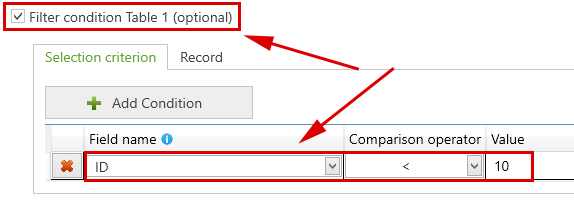
In this case, only those records from the first table where the content of the "ID" column is less than 100 will be used for linking with the second table. - Clicking on the “Next” button then starts the processing of the data. It does not take long and a summary of the result is displayed:

If the programme has found matches between the tables to be processed, clicking on the "OK" button leads to the dialogue box with the functions with which the result can be further processed. - In the dialogue box with the functions that can be used to further process the result, there is a button at the top labelled "Manual post-processing". Here, the result of the comparison is displayed in the form of a table. The data records that are to be selected are marked with a green tick, which can be deleted if necessary.
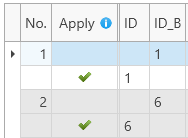
- Finally, the result must be further processed. As mentioned above, we want to enrich the data, i.e. transfer certain information from one database to another based on the selection result. To do this, we select the appropriate function by first clicking on "Enrichment functions":

And then on "Enrich in the source table":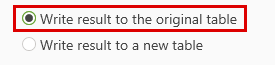
- In our case, the table to which the data is written (= target table) is the table "sample1.xls":
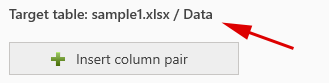
The data from the unmarked data record is transferred to the marked data record (see manual post-processing):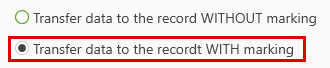
To enrich the data, we now only need to tell the programme what information it should write where. To do this, we add one or more column pairs at this point:
For example, the information from the "Tel" column in the source table could be written to the "Result_A" data field in the target table, and the information from the "Email" column to the "Result_B" data field.
In both cases, the content of the target data field should be overwritten by the information from the source table if necessary (= "Action"):
- Optionally, information can be stored with the data records enriched with additional information that provides details about where this data originates. This information is required in order to fully comply with the right to information in the case of personal data and thus meet the requirements of various data protection laws such as the GDPR (General Data Protection Regulation):

This means that all the information required for data enrichment is now available. Click on the "Process data" button to start the process.
Note: There is a video tutorial available for DataQualityTools, introducing the user to the operation of the program based on the example of a duplicate detection within one table.