

However, data from different sources often has a different structure and therefore cannot be easily combined:
- The column headings may differ. For example, in one table the column with the postcode may be called "Postcode" and in another "Postal code". This could be standardised relatively easily.
- However, it becomes more complicated when columns are missing or additional columns are present: in this case, empty columns with this column name would have to be added to all tables in which columns are missing.
- The situation is similar if the columns appear in different orders in the individual tables, for example if the columns "First name" and "Surname" are swapped. In this case, the order of the columns in question would have to be adjusted before merging
- Finally, it could be that certain information has been entered in a single column in one of the tables to be merged, but in two separate columns in the other table. For example, the surname may have been entered separately from the first name in one table, but in a single data field in the other table. In this case, there are several ways to solve this problem: You could merge the two separate columns in one table into a single column and thus standardise the data. Or you could try to break down the data from the table with the single column for this information into its components and store it in two columns. Or, for the sake of simplicity, you could decide not to standardise the data at this point and accept that in the target table, the "Surname" column will either contain only the surname and the first name will be in the ‘First name’ column, or the "First name" column will be empty and the complete name will be in the "Surname" column.
However, it may be that not all data records should be transferred because there are overlaps in the tables to be combined:
- Either you ensure that the tables do not overlap before merging them, or you clean up duplicates after merging. You can read about how to clean up a table of duplicates in the article "Search intelligently for duplicates and duplicate addresses with DataQualityTools".
- However, it is also conceivable that after merging, it is not simply a matter of cleaning up duplicates, but that the cleaning up of duplicates is used to complete the remaining data records with information from the deleted data records, such as the email address. You can find out more about data enrichment in the article "Enriching data: Adding information from a second table".
In any case, this means a lot of preparatory work before the tables to be merged can even be merged.
Finally, there is the problem that the data sets to be merged into a table may be in different formats. One of the tables to be merged could be an address list stored in an Excel file, for example. Another of the tables to be merged could be a text file. And yet another table could contain data from a database managed by a database server such as MySQL or SQL Server. Of course, before actually merging the tables, you could first ensure that all source tables are in the same format by exporting and/or converting them accordingly. However, it is much easier to skip this step and process the data directly in the format in which it is available.
DataQualityTools, among others, can do all this and much more. To merge two or more tables, proceed as follows:
- If you have not already done so, download DataQualityTools free of charge here. Install the program and request a trial activation. Then you can work with the program for one whole week without any restrictions.
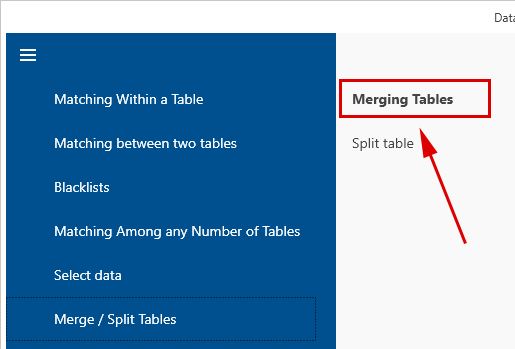
- The function we need is located in the menu under the 'Customise tables' section. Select the 'Merging Tables' function there to merge the tables:
- After starting this function, the project management appears. Here, you create a new project with a project name of your choice and then click on the 'Next' button.
- The next step is to add the tables to be merged to the project. There are several ways to do this. For Excel files with only one worksheet, for dBase, CSV and text files, you can use the "Add multiple files" button:

Select one or more files in the corresponding dialogue box. After clicking on the "Open" button, the programme will add all selected tables to the project.
If the Excel file contains multiple worksheets or if you want to use a data source other than Excel, dBase or text files, please use the "Add table" button:
Let's add an Excel file. To do this, click on the "Open file" button and then select the Excel file: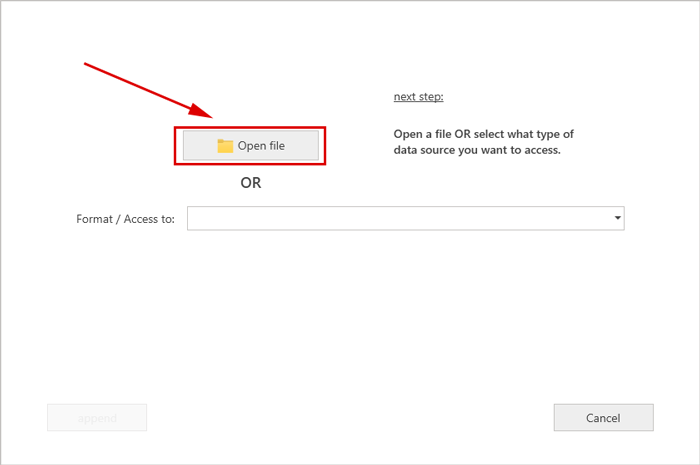 '
'
The name of the selected Excel file will then appear under "Database name". And under "Worksheet", you will find a list of the tables contained in this file. If the data source contains more than one table, such as an Excel file with multiple worksheets, then several tables/worksheets can be added to the project at once, or all of them if desired: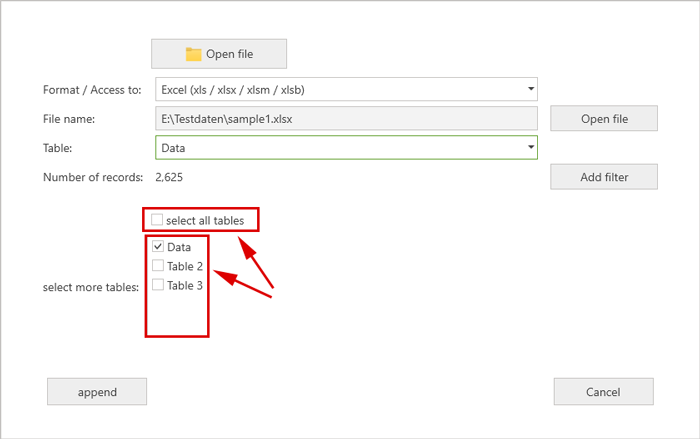
To add a second table, click the "Add table" button again. The same dialogue box as before will appear: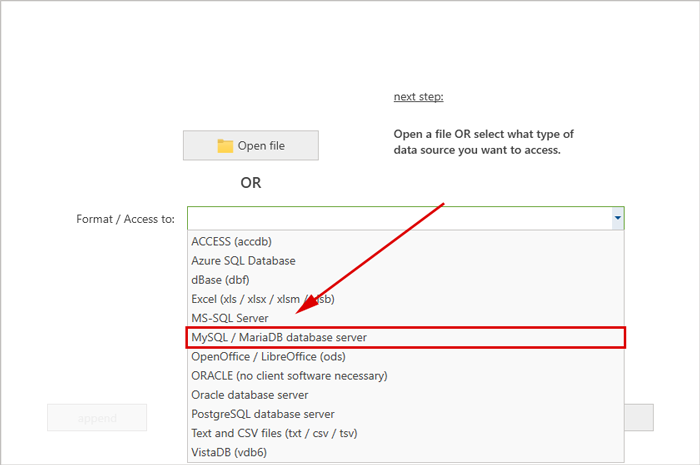
The "Open file" button, which we just used, can be used to add Excel, Access, dBase, CSV and text files. However, as the second of the summary tables, we want to select a table from a database managed by a MySQL database server. To do this, first select "MySQL/MariaDB database server" from the drop-down list under "Format/Access to". Then enter the name of the database server. After clicking on the "Connect to server" button, enter the access data. Finally, select the desired database and table from the corresponding selection lists. Proceed in the same way if your data is managed by another database server such as MS SQL Server, MySQL, MariaDB, Oracle, Azure SQL or PostgreSQL. - We now have two tables with a total of 2779 data records that are to be merged:

However, this function can merge more than just two tables. You can specify (almost) any number of tables at this point. - Clicking on the "Next" button takes us to the dialogue box where we can specify how the merged table should look and where the content of the columns from the tables to be merged should be assigned:
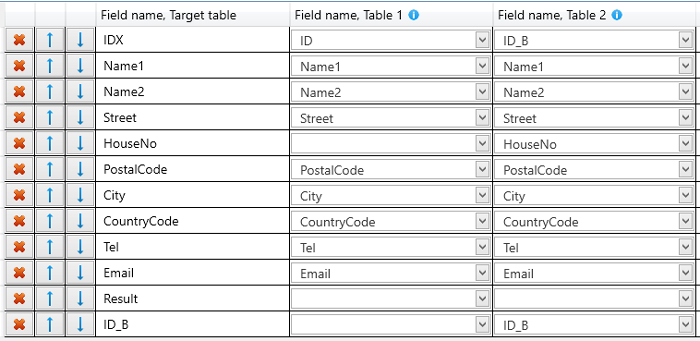
This table contains the following information:
- The row in question can be deleted using the button with the red cross.
- The two buttons with the green arrows can be used to move the relevant row up or down.
- "Field name target table" This column contains the names of the columns for the table to be created. These can be changed.
- "Field name table 1": This column contains selection lists with the names of the columns from the first of the two tables to be merged.
- "Field name table 2": This column contains selection lists with the names of the columns from the second of the two tables to be merged.
Wherever columns with the same name appear in both tables, the programme has already assigned them to the same column in the target table. In all other places, no data field from the selection list has (yet) been selected for either Table 1 or Table 2. However, this can be changed. For example, if the column "Result_BA" from Table 2 is to be assigned to the same column as the column "Result_A" from Table 1, we simply make this assignment manually: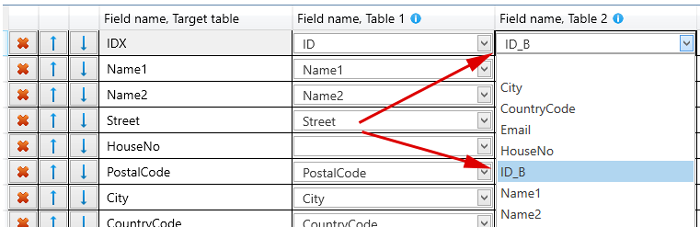
The column "Result_BA" in the target table is no longer needed, as we have just assigned the column "Result_BA" from table 2 to another location. We can delete this row using the button with the red cross: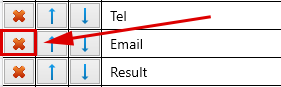
- In our example, there is actually a case where certain information has been entered in a single column in one of the two tables to be merged, but in two separate columns in the other table:

In this case, this concerns the street and house number. As described above, there are various ways to solve this problem. Please refer to the "Split street" and "Combine data fields" functions in DataQualityTools. - Clicking on the "Next" button finally takes us to the dialogue box where we can start merging the tables. To do this, we first need to give this file a name. The available formats are Excel and CSV/text file, whereby a distinction is made between a text file that uses the character set of the computer on which the programme is running and a text file that uses UTF-8 (Unicode). Unicode is a universal, language-independent character set, as used by Excel:
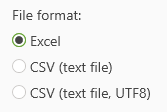
Let's choose Excel here. A file name must then be specified for the file in which the tables are to be merged:
Clicking on the "Create file" button will then create it. The result is an Excel file with a table containing all the records from the tables to be merged with exactly the structure we specified in the previous step.