Specifically, the question could be to find out which of the orders contained in one table do not (yet) appear in the second table. To do this, the two tables are compared to find out whether a specific order number from one table also appears in the second table. The result of this comparison is the set of overlaps between the two tables. Following the comparison, the "Determine difference between two tables" function can be used to export the records from each of these two tables that do not appear in the other table.
To do this, proceed as follows:
- If you have not already done so, download DataQualityTools free of charge here. Install the program and request a trial activation. Then you can work with the program for one whole week without any restrictions.
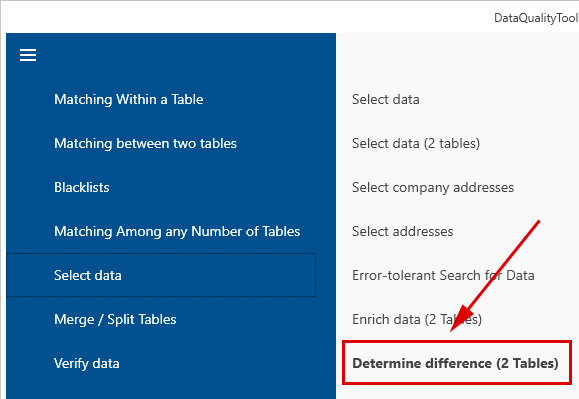
- The function we need can be found in the menu in the "Select data" block. Select "Determine difference (2 tables)" there:
- After starting this function, the project management appears. Here, you create a new project with a project name of your choice and then click on the 'Next' button.
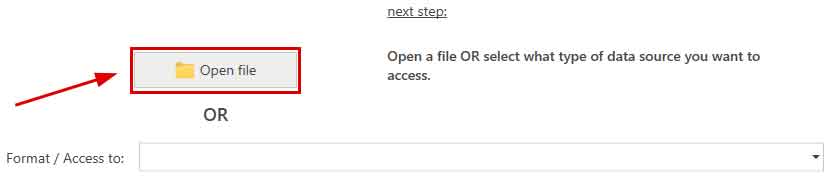
- In the next step, we first open the two files containing the data to be processed using the "Open file" button.
The desired table from these two files is selected using the corresponding selection list. - In the next step, we need to define the condition with which the two tables are to be linked. To do this, we first click on the "Add condition" button:

This adds a new row to the table below with the individual components of the condition for the link. The two tables are to be linked via the ID. So we select the column named "ID" from the list of column names in the first table: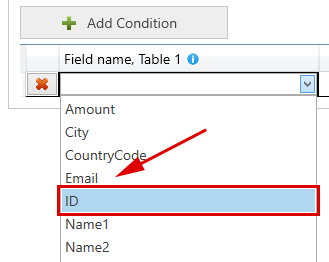
And from the list of column names in the second table, we select the column named "ID_B":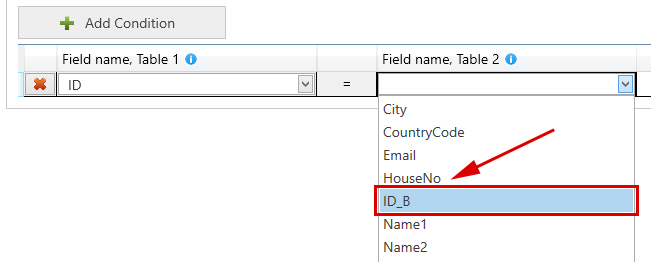
- Clicking on the "Next" button then starts the comparison of the two tables. In our example, the result looks like this:
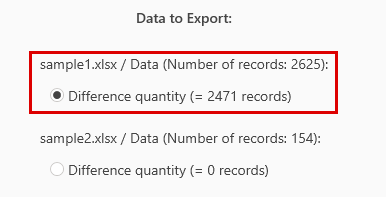
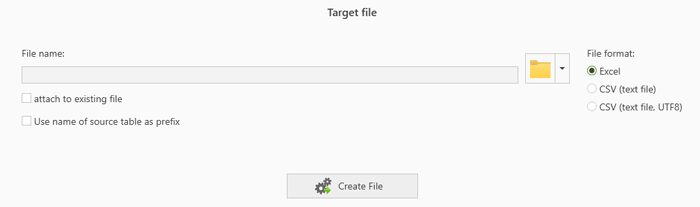
In this case, all records from the "sample2" table are contained in the"sample1" table. Exporting the result for the "sample2" table therefore results in an empty result table. However, exporting the result for the "sample1" table writes all records from the original "sample1" table that are not also contained in the "sample2" table to the result table. - Clicking on the "Next" button finally leads to the dialogue box where you can specify the format in which the result should be exported: