

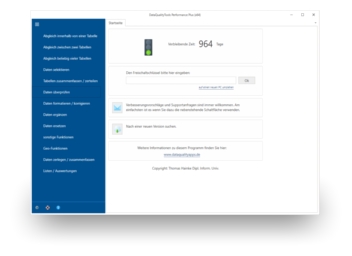
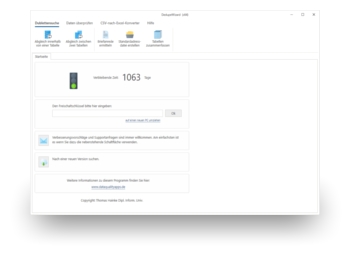
To do this, we first need the project that will later be started via the command line. To create this, proceed as follows:
- If you have not already done so, download BatchDeduplicator free of charge here. Install the program and request a trial activation. Then you can work with the program for one whole week without any restrictions.
- First, you have to create a new project and provide all the required information for the duplicate detection. To do so, open the project administration.
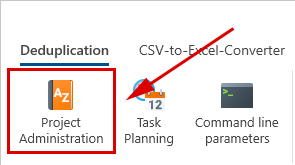
- After clicking on 'Create new project', ...

... a dialogue appears where you must start by entering a name for the new project.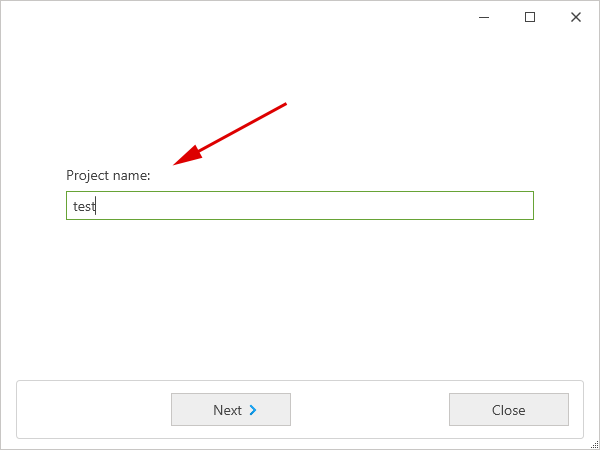
After clicking on 'Next', the project type can be selected. The choices include 'Matching within a table', 'Matching between two tables', 'Multiple deduplication' and the 'Faulty addresses list'. Let’s select 'Matching within a table'.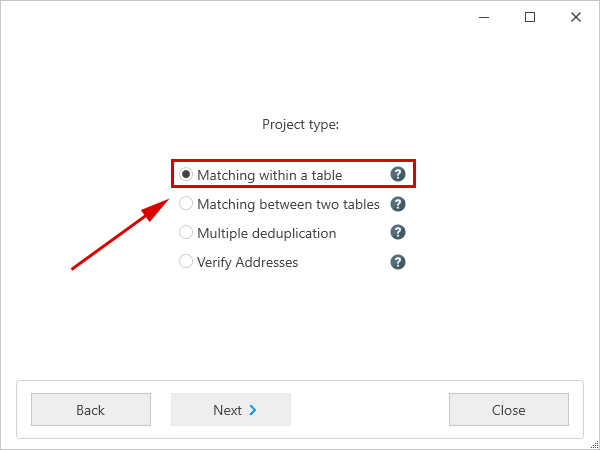
After another click on 'Next', you have to select the criteria to be used for the duplicate detection with the matching functions, for example, the postal address or the telephone number. Let’s select the postal address for the matching criterion.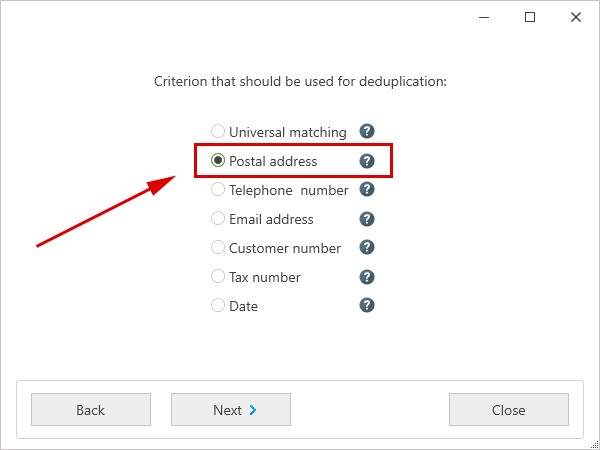
After one last click on 'Next' and then on 'Finish', the program automatically opens the 'Edit project' dialogue. - There, you can open the file with the data to be processed by clicking on 'Open file'.
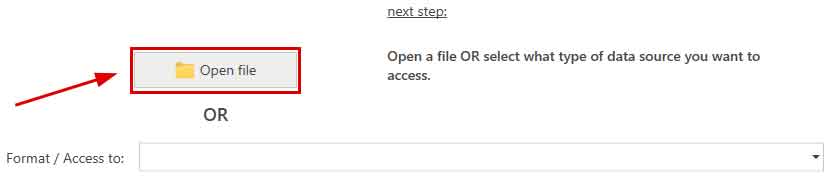
With database servers (MS SQL Server, MySQL, Oracle or PostgreSQL), we have to select the corresponding database server instead, in the 'Format / Access to' selection list. After that, we enter the name of the database server. After clicking on the 'Connect to server' button, the access data have to be entered. Finally, the desired database containing the table can be selected in the corresponding selection lists. - Afterwards, the program has to be told in which columns it can find what information in the table, i.e., which column contains the street or name of the city. To do so, you have to select each data field from the table from the selection list with the column headings that fits best with the designation on the left.
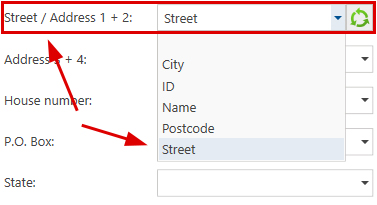
The program automatically carries out a default field assignment using the column headings. Since we want to search for duplicates based on the postal address, we also have to indicate the respective columns from the table to be processed that contain the information for all of the components of the postal address. The results of the field assignment can be verified by using 'Verify field assignment’, which can be found on the right half of the screen. - With the 'Next' button, we come to the dialogue where the actual function can be configured. Here, the most important step is to set the threshold for the maximum allowed discrepancy between two addresses.
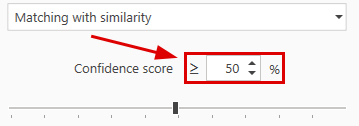
Furthermore, individual components of the postal address can be excluded from the comparison. In doing so, a column from the table to be processed has to be indicated, during the field assignment in the previous step, for each component of the postal address that should be included in the comparison. - Finally, you have to tell the program how it should transform the matching results, i.e., if it should delete duplicate records directly in the source file or only flag them. A click on the 'Next' button takes you to the overview with the available transformation functions. Let’s select 'Standard deletion log' and the 'Results file'.
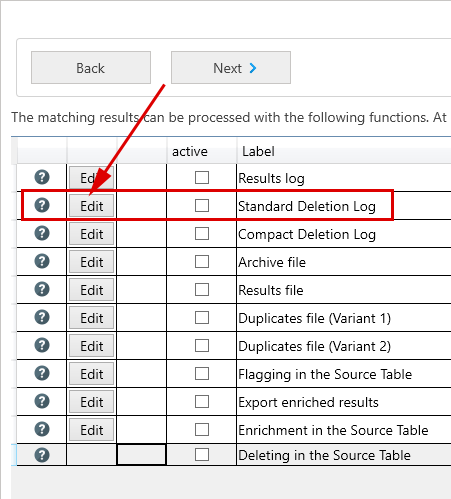
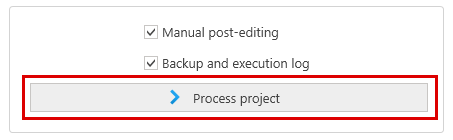
You have to enter a file name for each. The results file will contain the cleansed data. - Good, so now there should be a green checkmark in front of our project in the overview with the available projects. Thus, the project is complete and ready to be executed. You can start the project by clicking on 'Process project'. Then it will be executed immediately.
Okay, so we now have the project that will be started via the command line. Now we just need the command line command to start this project there:
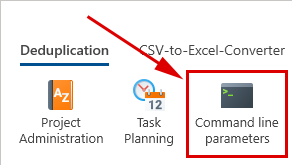
To do this, first close the project management. Then call up the 'Command line parameters' function from the main menu:
- Select the project that is to be started via the command line. Then click on the 'Create the command for the starting of BatchDeduplicator using a command line' button:
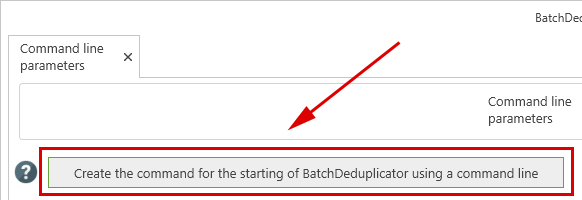
- The generated command will probably look something like this:
"C:\Program Files (x86)\DataQualityApps\BatchDeduplicator8\BatchDeduplicator.exe" -exec 100
If necessary, the following parameters can be added to this command:
- -file1="<filename>": The file name specified with this parameter replaces the file name of the first table from the project to be processed. The new file/table must contain at least all the data fields that are also used in the project in question.
- -nobackup: If this parameter is specified, no backup of the file is created before it is changed when the programme is called.
- -nolog: If this parameter is specified, no log is created when the programme is called.
- -noemail: If this parameter is specified, no notification email will be sent when the programme is called.
- -debug: If this parameter is specified, error messages are displayed directly in the BatchDeduplicator user interface, if applicable.
It is, of course, convenient to be able to run a project unattended. However, if a problem arises, you naturally want to be informed about it. You can read about how to set up a notification email in BatchDeduplicator in the article 'Setting up a notification email'.